

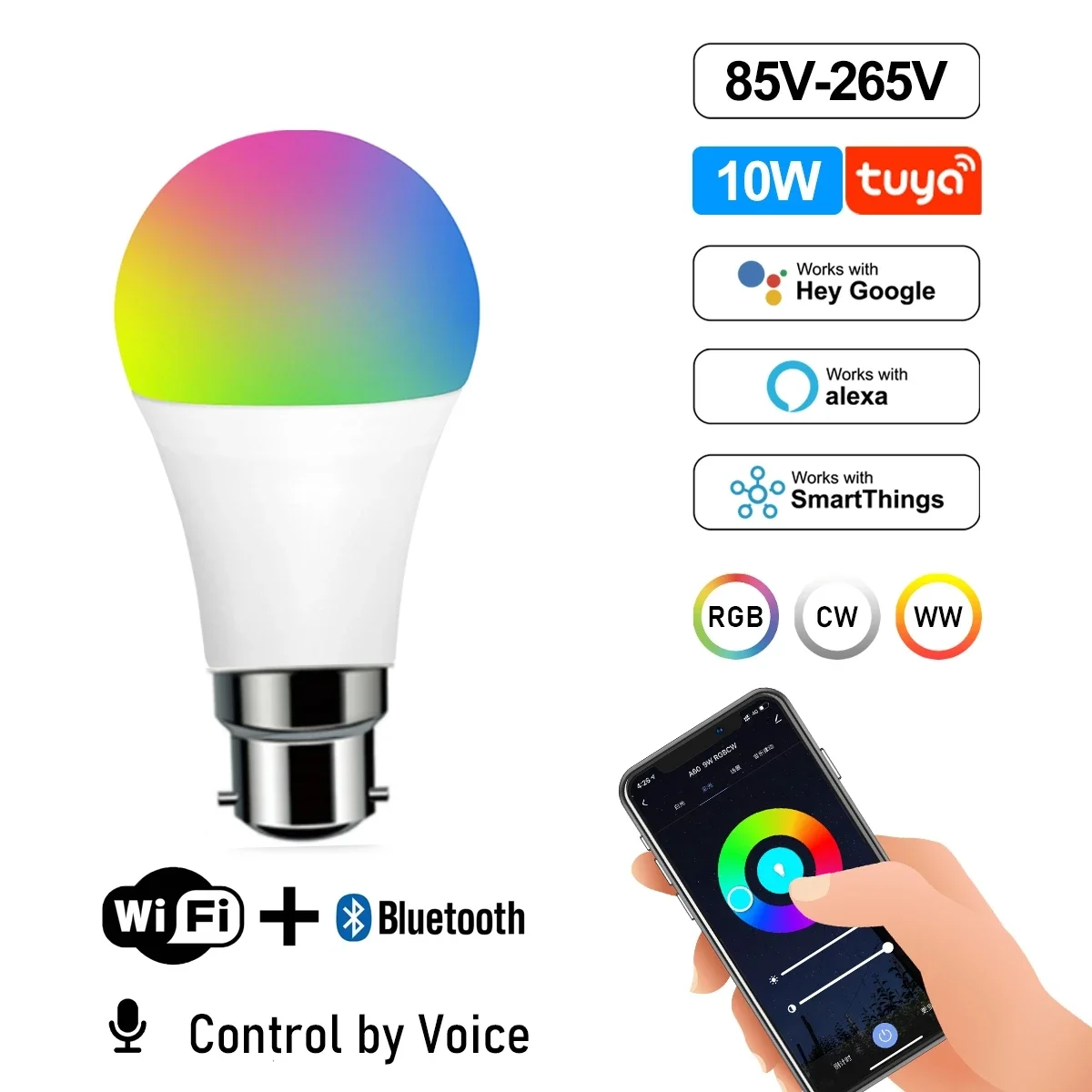
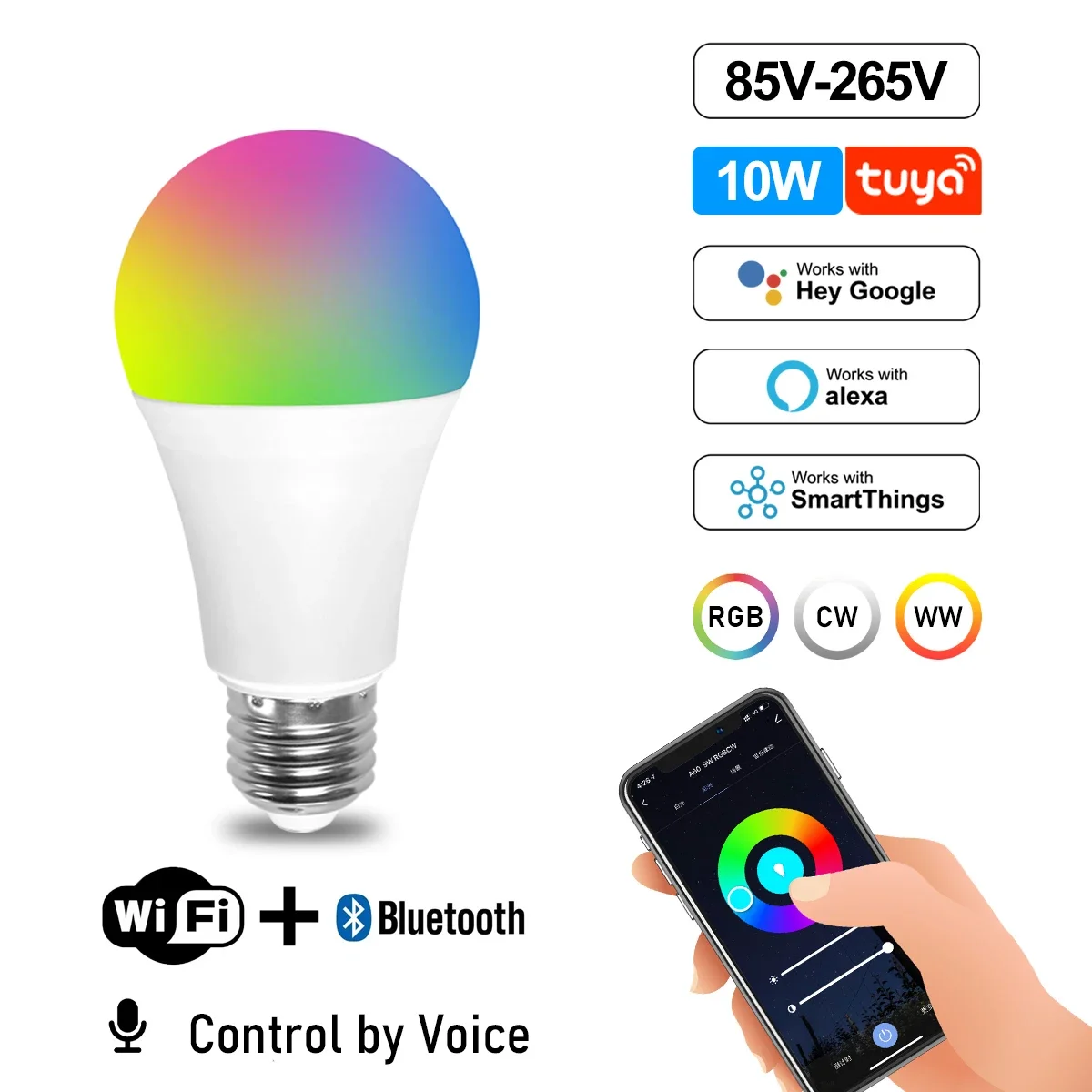
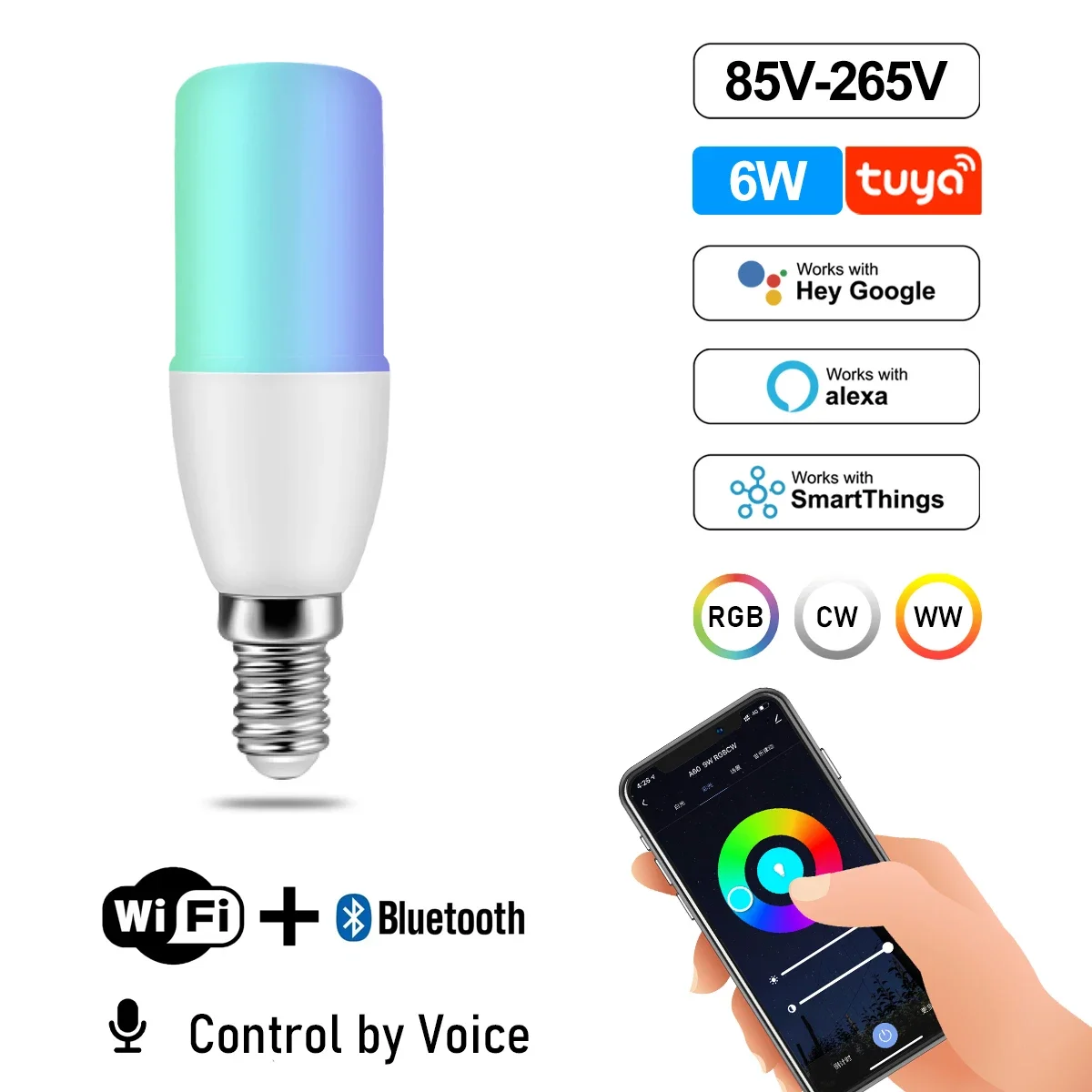
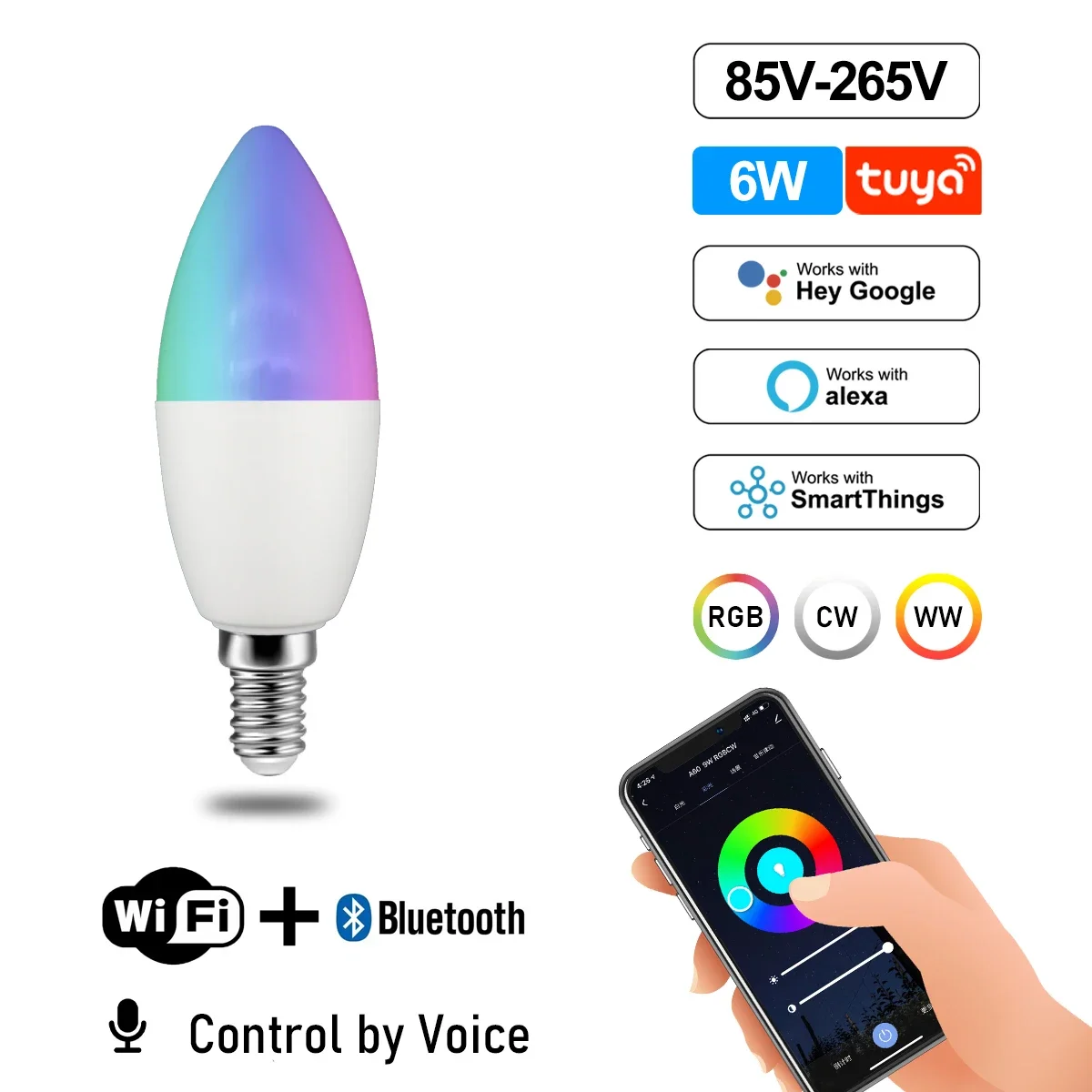
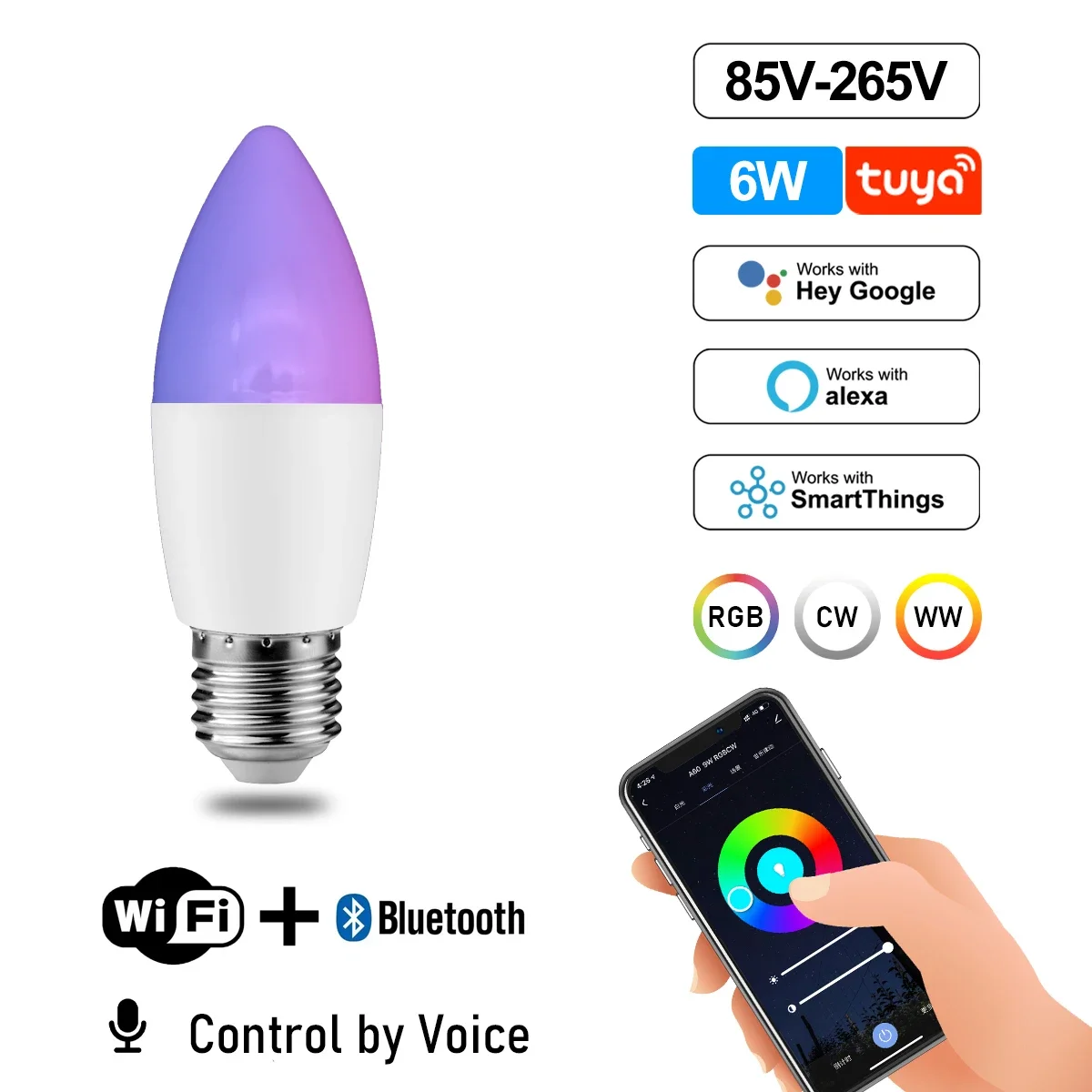
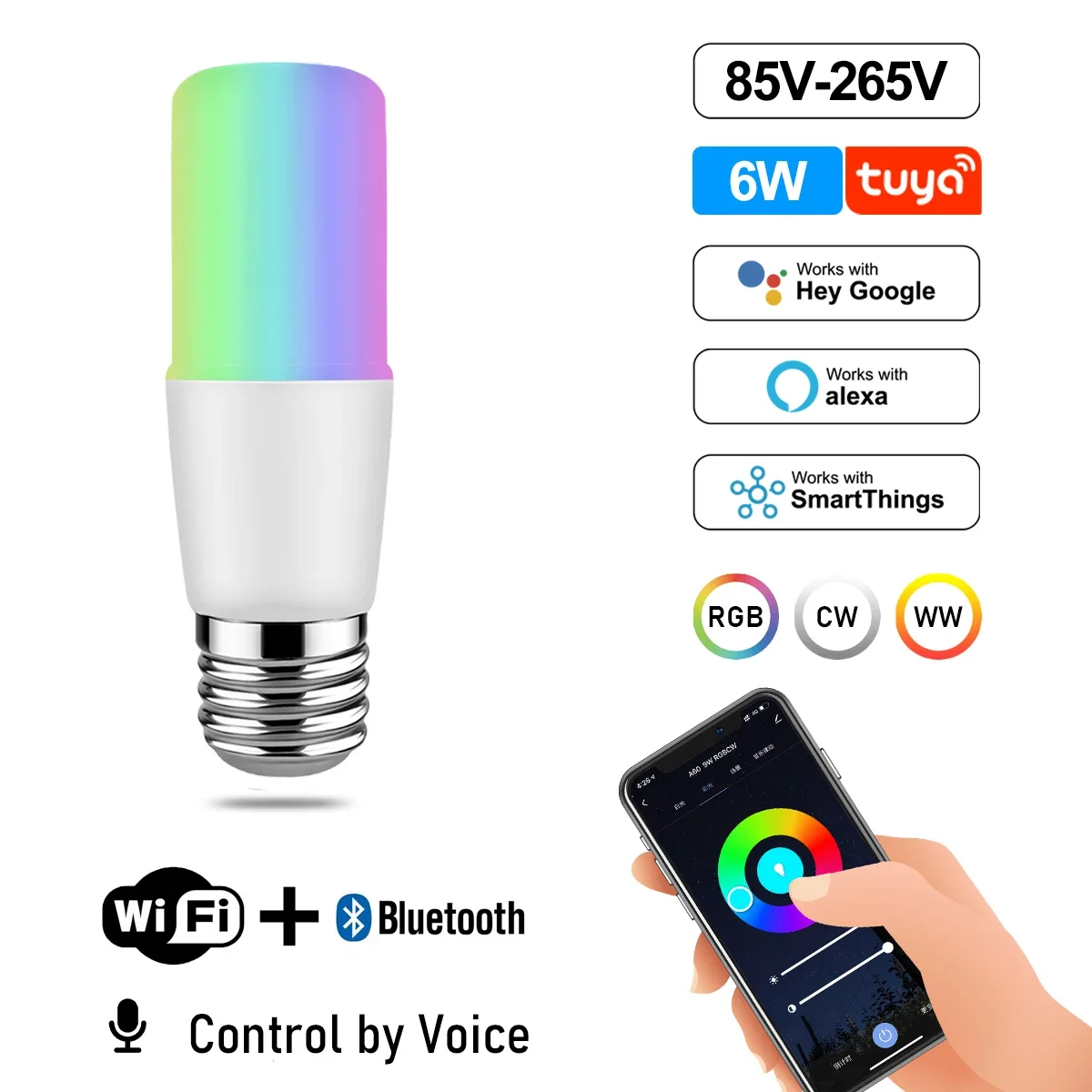
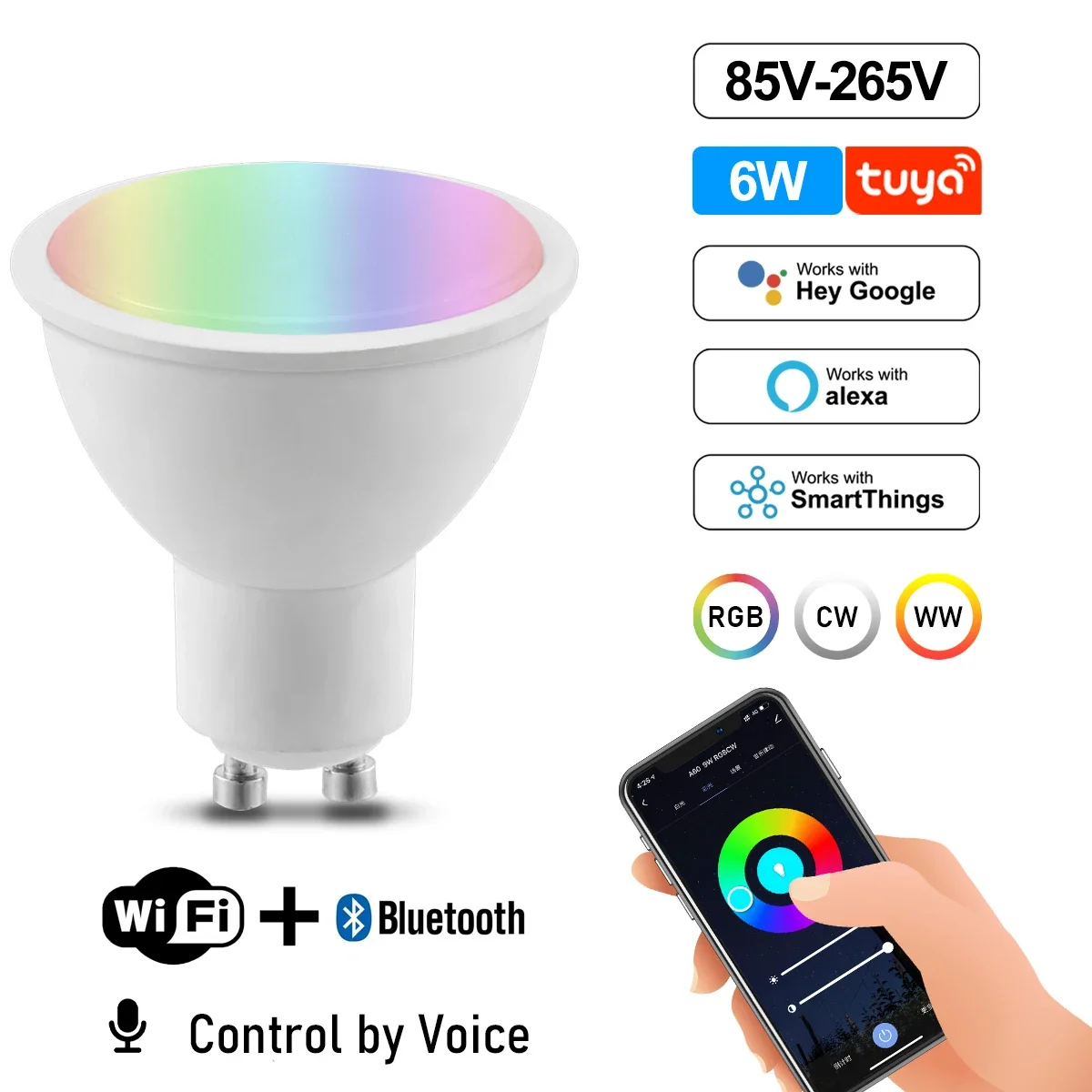
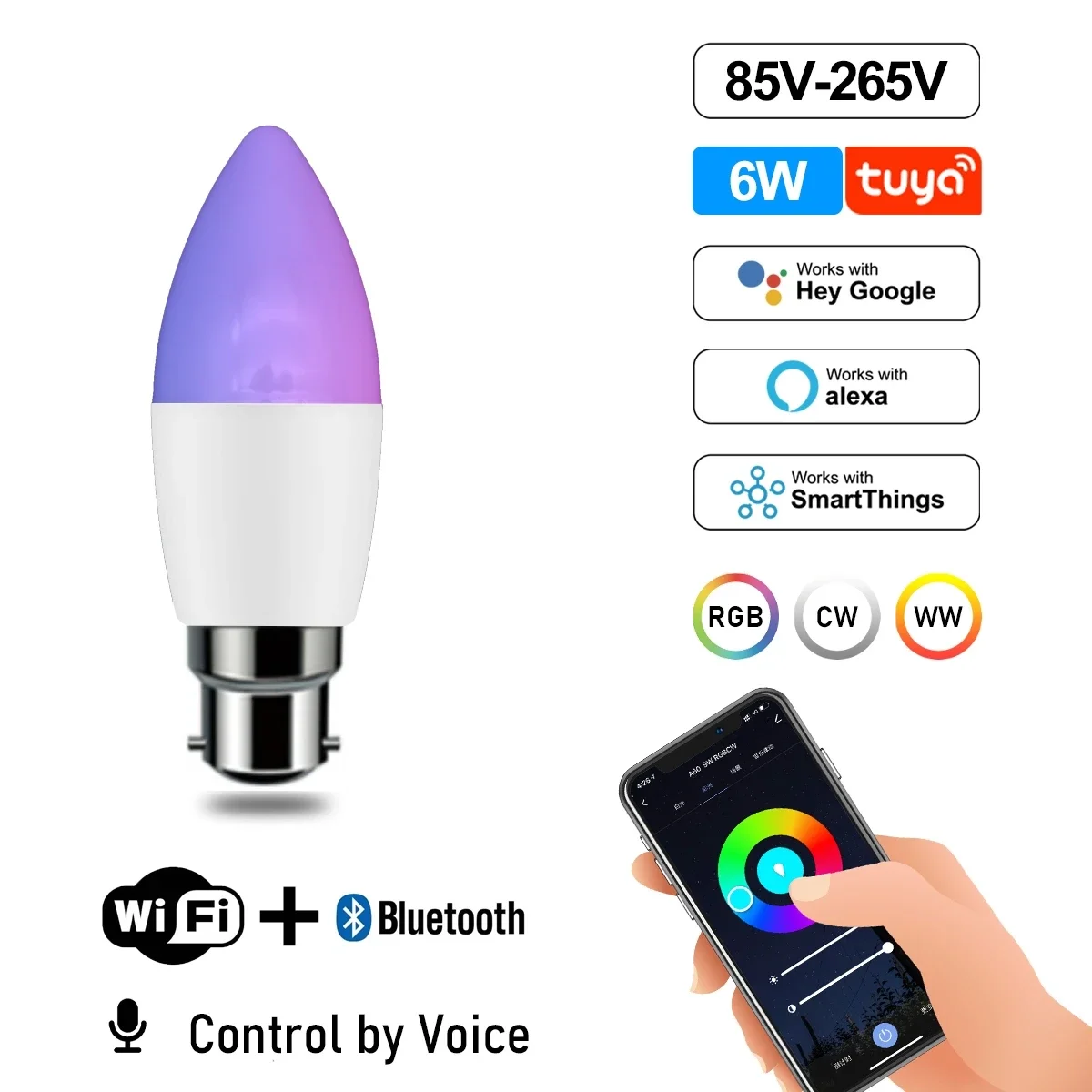
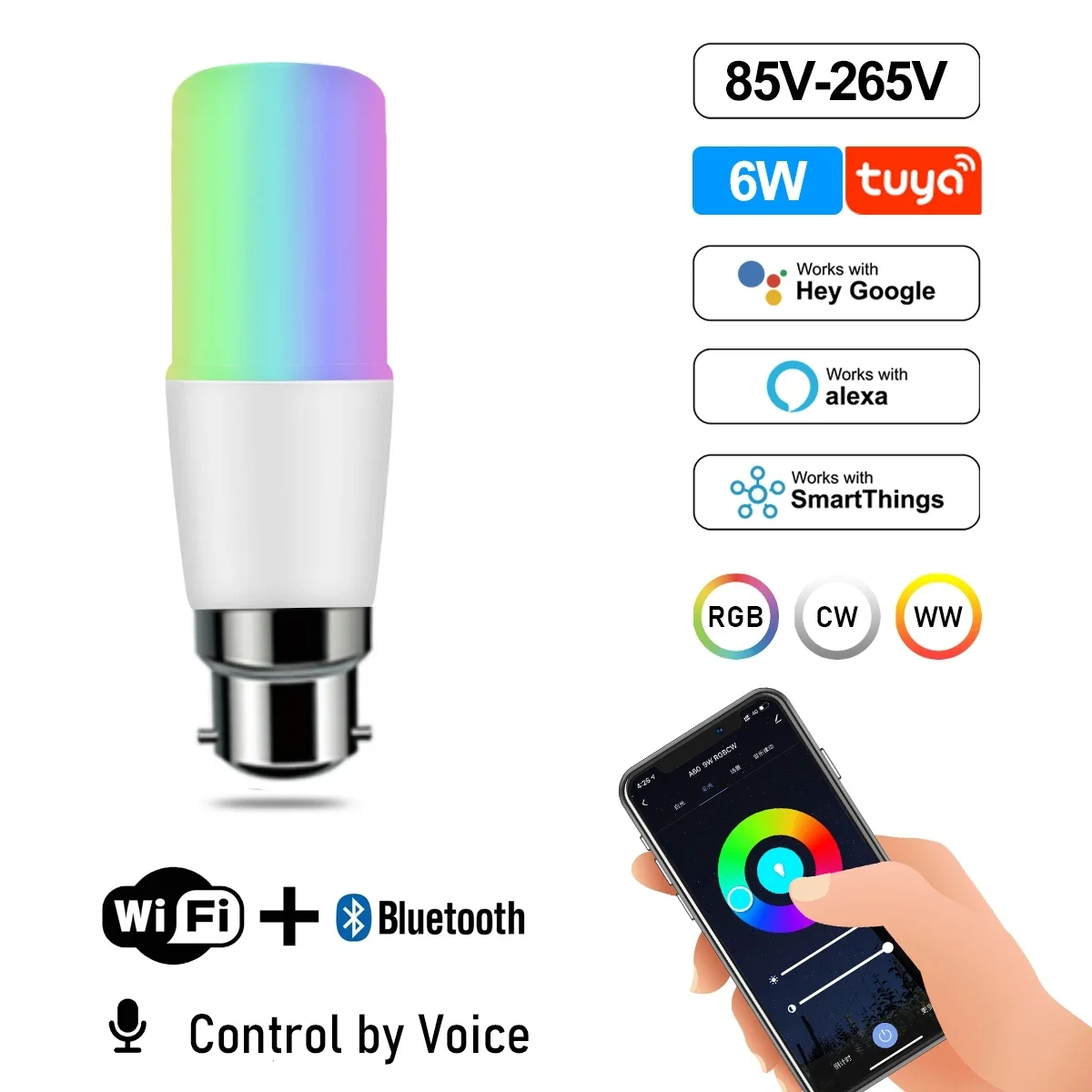
Dimmable Tuya Rgb Smart Bulb Gu10 C37 A60 T37 E14 E27 B22 Light Wifi Led Magic Lamp AC85V-265V Work With Alexa Google Home
- Fast delivery
- 30-day returns
Instruction
Wi-Fi LED Bulb

Step 1: Preparation for use
1.Power on the bulb while ensuring that the phone is connected to the 2.4 GHz Wi-Fi network;
2.Download and open up the app: Search for "Smart Life" or "TUYA" in the App Store or scan the QR code on the package/manual to download and install the app; Please click the "Register" button to register if you download it for the first time. If you already have an account, click the "Login" button.
Step 2: Device Network configuration
1.Open up the smart life app "Devices" page, click the " + " on the upper right corner of the page;
2.Select "Lighting " on the device list page;
3.There are two config mode: EZ mode and AP mode
1)EZMode
Ensure the light flashing quickly (twice a second) or breathing which indicates that the device is in config mode which allows you to connect. Please press the lamp switch by 5 times (on-off-on-off-on-off-on-off-on) ,stay in the open state ,till the light flashing quickly or or breathing. Click the"Confirm Light blinks rapidly" button on the page to start configuration.
2)AP Mode
Click the "AP Mode" in the upper right comer. After the indicator light flashes slowly; click the confirmation button on the page to connect to a 2.4G network. Then click "Connect Now" to connect to the hotspot of the device "SmartLife -XXXX".
Step 3: Network access settings
1.Input the WIFI password, pay attention to connect 2.4G network environment, temporarily do not support 5G network;
2.You can see the light bulb on the "Devices" page after setting up successfully
Step 4: Control devices
1.Open the light control page. If it is off only the "Schedule" function will be displayed below. When light up, the complete function will be displayed at the bottom;
2.Click on "Color", you can manually adjust the brightness and color temperature of the light;
3.Click on the "Scene", you can choose the lighting mode under different scenes.


Packaging & Shipping

FAQ
Q1:When can my order be shipped?
A1: Please refer to China time, orders placed from 8:00 am to 3:00 pm China time can be shipped on the same day. Orders placed after 3:00 pm will be shipped the next day.
Q2:How is the quality of the product?
A2: We will check all products to be shipped to ensure that they are in good condition when delivered to you.
Q3:Why is the delivery logistics different from the one I selected when placing the order?
A3: We will select for you the most efficient and safe logistics provider to serve you.
Q4:Will customs be levied on the goods during customs clearance ?
A4: Different countries have different tariff policies, but we will try to reduce the declared value to avoid high tariffs.
Q5:What are the benefits of being a fan of the shop?
A5:Become a fan of the shop to enjoy more discounts.


| Category | Home & Office › Lighting |
|---|---|
| Availability | In Stock |
| Ships To | Canada |
| Buyer Guarantees | 15-Day No Update Refund & 60-Day No Delivery Refund |
No reviews yet
Be the first to share what you think of this product.


