

PGYTECH MANTISPOD 2.0 Bluetooth Mini Camera Vlogging Tripod|6 Modes Small Travel Flexible DSLR Pocket Stand With Remote Control
- Fast delivery
- 30-day returns
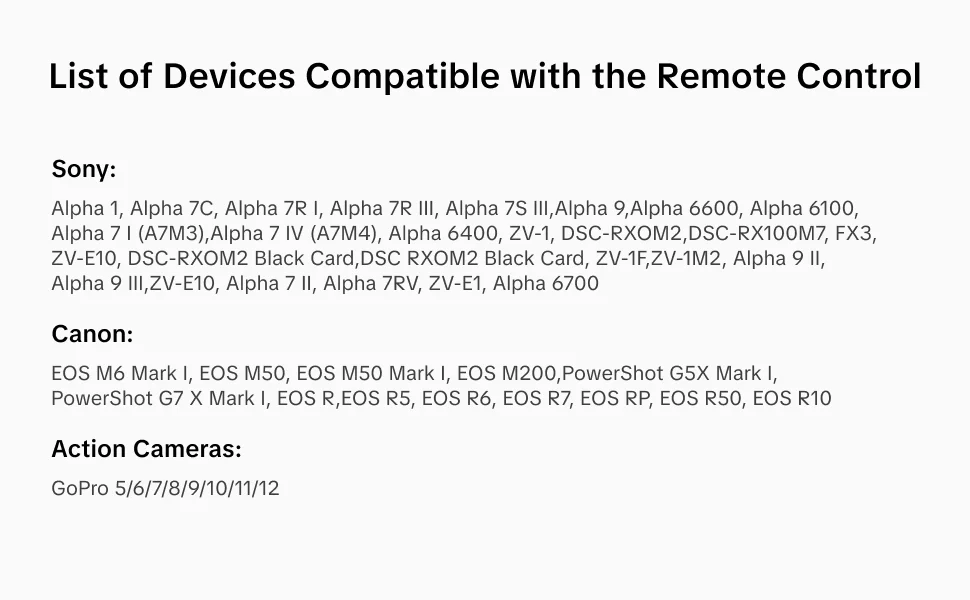
●List of Devices Compatible with the Remote Control
Sony:
Alpha 1, Alpha 7C, Alpha 7R I, Alpha 7R III, Alpha 7S III.
Alpha 9, Alpha 6600, Alpha 6100, Alpha 7 I (A7M3),
Alpha 7 IV (A7M4), Alpha 6400, ZV-1, DSC-RXOM2,
DSC-RX100M7, FX3, ZV-E10, DSC-RXOM2 Black Card,
DSC-RXOM2 Black Card, ZV-1F, ZV-1M2, Alpha 9 II, Alpha 9 III,
ZV-E10, Alpha 7 II, Alpha 7RV, ZV-E1, Alpha 6700
Canon:
EOS M6 Mark I, EOS M50, EOS M50 Mark I, EOS M200,
PowerShot G5X Mark I, PowerShot G7 X Mark I, EOS R,
EOS R5, EOS R6, EOS R7, EOS RP, EOS R50, EOS R10
Action Cameras:
GoPro 5/6/7/8/9/10/11/12
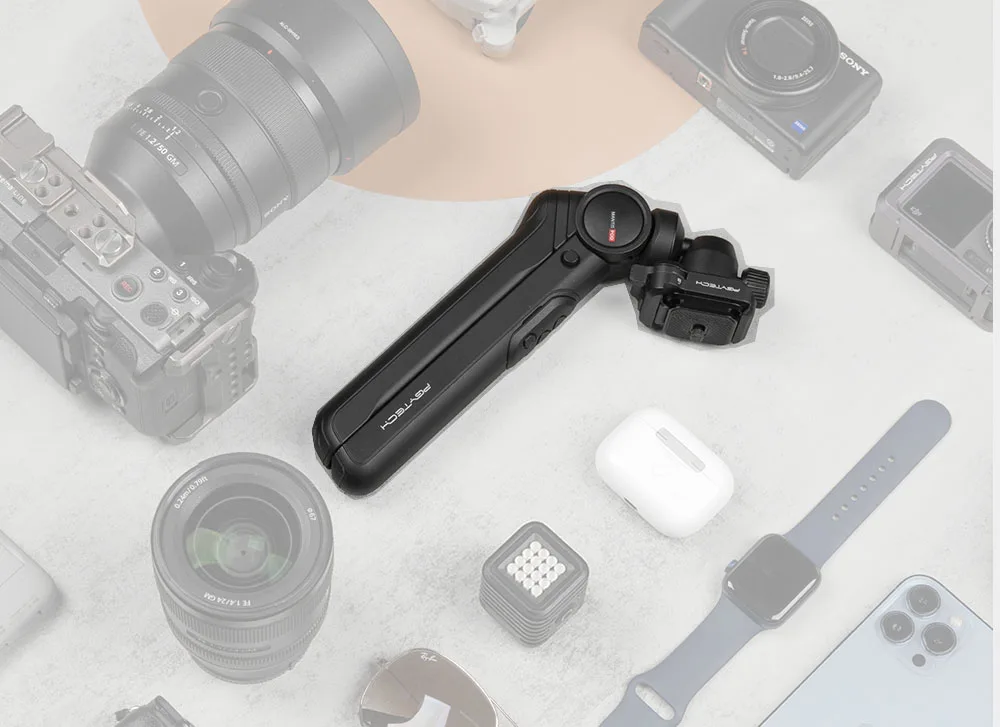
Suitable For All Card camera, mirrorless camera, digital camera, action camera (≤2kg)(PGYTECH action camera quick release mount needs to be purchased separately), mobile phone (PGYTECH Mini smartphone holder needs to be purchased separately)
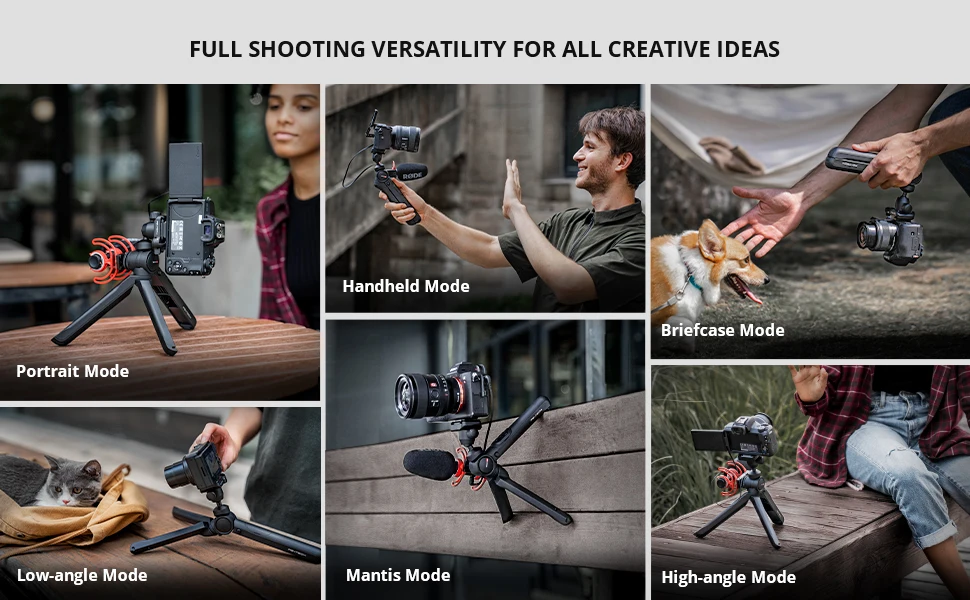
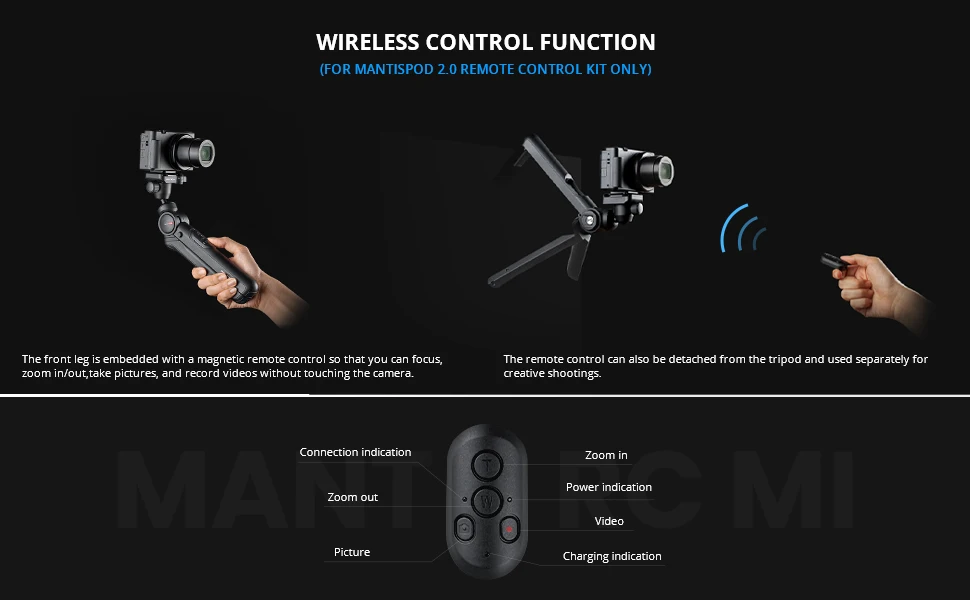
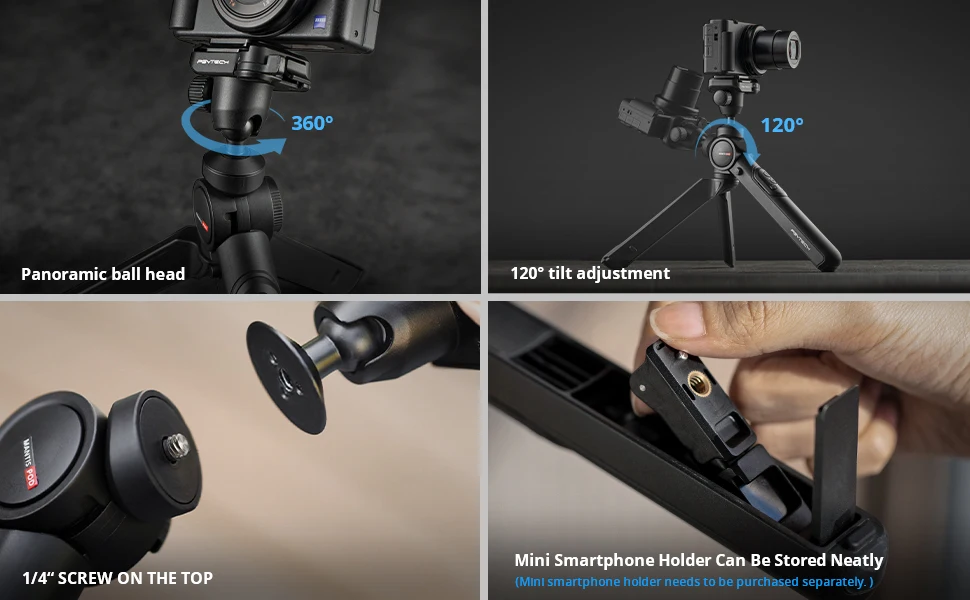
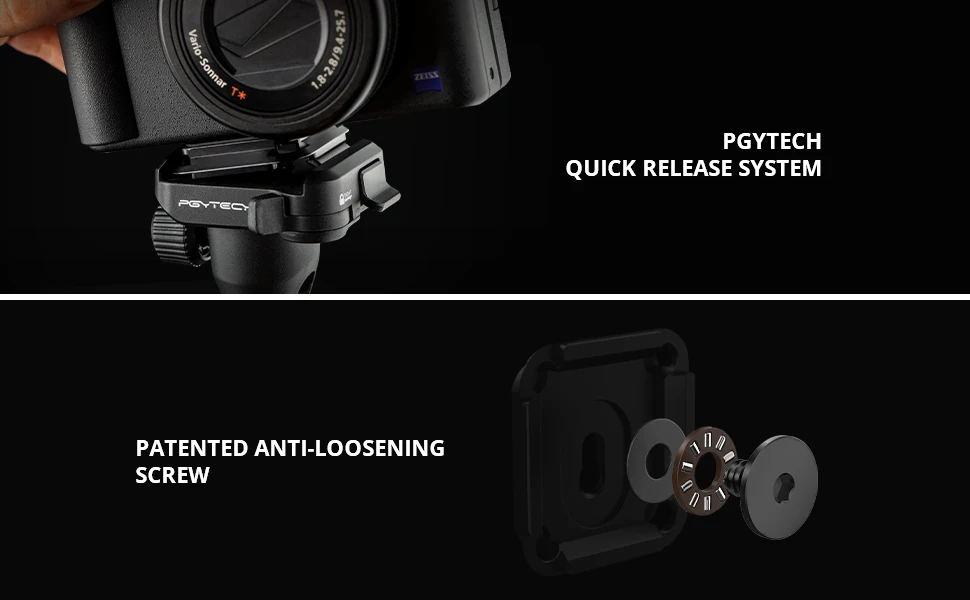
PGYTECH MantisPod 2.0 Remote Control Kit FAQ
How to use MantisPod 2.0 Remote Control Kit?
Remove the decorative cover on the front leg and the Remote Control can be magnetically fixed to the tripod; For tripod use, please refer to quick start guide
Under what conditions can Mantis mode be applied?
Mantis Mode can only be applied when satisfying the following requirements:
1.The hanging surface should be less than 90mm thick.
2. The other two leg must be supported .
3. Please avoid hanging it on moving vehicles, yachts and other moving objects.
Mantis Mode can only be applied when satisfying the following requirements:
1.The hanging surface should be less than 90mm thick.
2. The other two leg must be supported
3. Please avoid hanging it on moving vehicles, yachts and other moving objects
What gear is MantisPod 2.0 compatible with?
It is compatible with Vlog gear that is less than 2kg, including mirrorless cameras, smartphones and action cameras. (the action camera adapter and smartphone holder need to be purchased separately in official store)
How can I connect MantisPod 2.0 Remote Control Kit with my camera?
Long press the Video button to switch on, and press Video button 5 times to enter Bluetooth pairing.
1)Sony cameras: Press the MENU button on the camera. Go right to Network, then select Bluetooth Settings, choose Bluetooth Function, set the setting to On, then go back to Bluetooth Settings, Choose Pairing, make sure the remote control is connected, done.
2)Canon cameras:
Step 1: Press the MENU button, enable Wireless Communication Settings and choose Bluetooth Function, make sure the remote control is paired, done.
Step 2: Press the SET button, choose Driving Mode, and select Selfie: 10S/Remote Control, exit SET.
Step 3: Before taking pictures or videos, please adjust the camera to the desired gear first.
3) GoPro: Swipe down on the screen to bring up Preferences, and tap on it. Tap on connections and choose Connect Device. Scroll down to Smart Remote and select it.
| Category | Tech & Electronics › Cameras & PHOTO › Camera Accessories |
|---|---|
| Availability | In stock |
| Ships to | Canada |
| Buyer Guarantees | 15-Day No Update Refund & 60-Day No Delivery Refund |
No reviews yet
Be the first to share what you think of this product.


